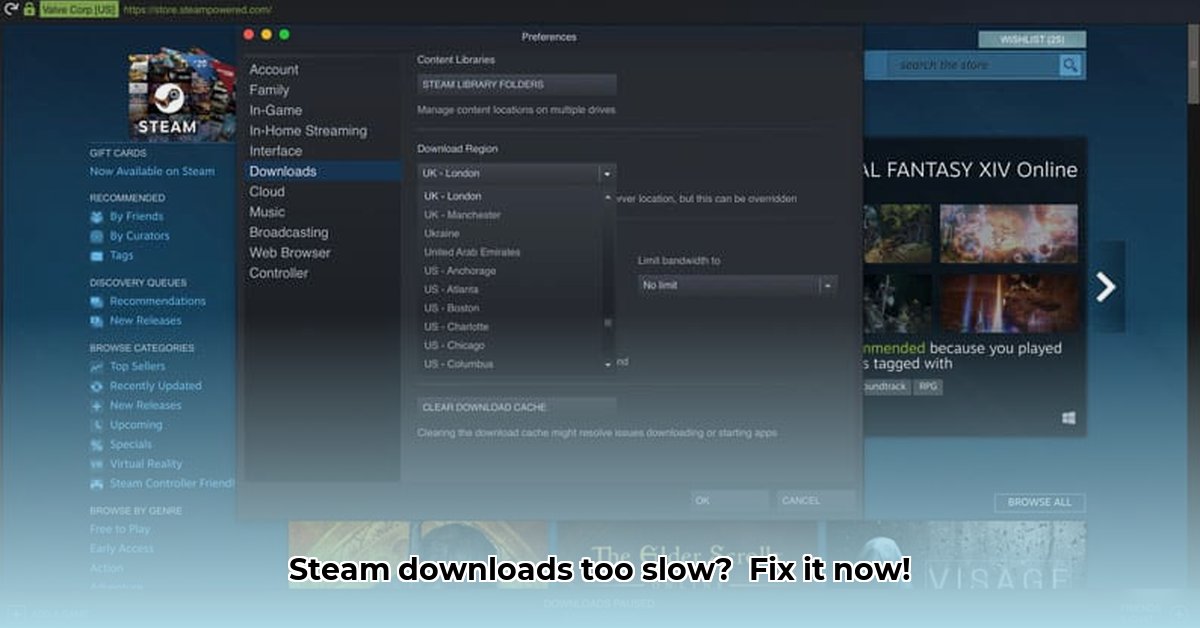
Steam Download Stalled? Let's Get You Back in the Game!
A stalled Steam download is incredibly frustrating. This guide provides step-by-step solutions to get your games downloading again quickly. We'll cover simple fixes and more advanced troubleshooting. Whether your downloads are slow, stopping, or won't start, we'll help you get back to gaming.
1. Internet Connection Check: The Foundation
Before troubleshooting Steam, verify your internet connection is working correctly. A slow or unreliable connection is the most common cause of download problems.
Run a Speed Test: Use a free online speed test (search "internet speed test") to measure your download and upload speeds. Compare these to your internet plan's advertised speeds. Are you getting what you paid for? (Try several tests at different times of day for a more accurate assessment.)
Restart Your Router and Modem: Power cycling your network equipment often resolves temporary network hiccups. Unplug both your router and modem, wait 30 seconds, then plug them back in. Allow a few minutes for them to fully restart.
Check Other Devices: Are other devices in your home experiencing internet connectivity issues? If so, the problem likely stems from your internet service provider (ISP). Contact your ISP for support.
Test a Different Network: If possible, connect to a different Wi-Fi network or use an Ethernet cable. A successful download on another network confirms the issue is with your home network.
2. Clearing the Steam Download Cache: Spring Cleaning
Steam uses a temporary file cache to speed up downloads, but a full cache can hinder or prevent downloads. Clearing the cache is a simple, effective solution.
Open Steam: Launch the Steam application.
Access Settings: Click "Steam" (top-left), then select "Settings."
Navigate to Downloads: Click the "Downloads" tab.
Clear the Cache: Click "CLEAR DOWNLOAD CACHE." Steam will delete temporary files.
Restart Steam: After clearing the cache, restart Steam and resume your download.
3. Optimizing Your Download Region: Server Selection
Steam servers are geographically distributed. A distant server can be slow or overloaded. Selecting a closer server improves download speeds.
Locate Download Region Settings: Go to the "Downloads" tab in Steam's settings (see Step 2 above).
Choose a Different Region: Use the dropdown menu to select a different download region. Start with nearby countries. Experimentation will determine the fastest region for your location.
Restart Steam: Restart Steam after changing the region.
4. Managing Bandwidth: Sharing Your Internet Connection
Other applications using your internet connection compete for bandwidth, impacting Steam's download speed.
Close Unnecessary Programs: Before starting a Steam download, close unused applications, especially bandwidth-intensive ones like video streaming services or large file uploads.
Prioritize Steam (if possible): Some routers allow application prioritization. Check your router's manual to see if you can prioritize Steam to receive sufficient bandwidth.
Monitor Bandwidth Usage: Many ISPs provide tools to monitor your bandwidth usage. Identify and limit high-bandwidth applications to free up resources for Steam downloads.
5. Updating Steam: Ensuring Current Software
An outdated Steam client can cause download problems. Keeping your client updated is crucial.
Check for Updates: Steam usually notifies you of updates. Install any available updates.
Restart Steam (and Your Computer): Restart Steam; if the problem persists, restart your computer.
6. Router Reset: A Simple Power Cycle
Network hardware glitches can cause download problems. A reset often resolves these issues.
Power Cycle Your Router and Modem: Unplug your router and modem from the power outlet.
Wait: Wait at least 30 seconds before plugging them back in.
Reconnect: Plug in your modem first, wait until it connects, then plug in the router.
7. Reinstalling Steam: A Last Resort Solution
Reinstalling Steam is a drastic measure but can resolve persistent issues. Back up your Steam folder before proceeding.
Uninstall Steam: Completely uninstall the Steam client.
Download the Latest Version: Download the latest installer from the official Steam website.
Install Steam: Install Steam to a new directory.
8. Contacting Steam Support: Seeking Professional Help
If all else fails, contact Steam support for assistance with complex issues.
Problem Diagnosis Table
| Problem | Possible Causes | Troubleshooting Steps |
|---|---|---|
| Download Stuck/Interrupted | Poor internet connection, network congestion, full cache | Check internet connection, restart router, clear cache, try a different network |
| Incredibly Slow Download Speed | Distant server, network congestion, insufficient bandwidth | Change download region, close bandwidth-intensive apps, prioritize Steam |
| Download Error Messages | Corrupted game files, outdated Steam, corrupted Steam installation | Verify game files, update Steam, reinstall Steam |
| Download Won't Start | Steam server issues, Steam client issues | Check Steam server status, restart Steam, reinstall Steam, contact Steam support |
Remember to try each step systematically. Often, a simple solution fixes the problem. Good luck, and happy gaming!
⭐⭐⭐⭐☆ (4.8)
Download via Link 1
Download via Link 2
Last updated: Friday, May 02, 2025